VirtFusion Rescue Mode

VirtFusion Rescue Mode
Overview
In this guide we'll learn how to access our VPS via our Bloom.host VirtFusion panel in "Rescue Mode".
Prerequisites
Before following this guide, make sure you've enabled VNC and opened the Console. To do so, follow our VirtFusion VNC Guide.
Starting Rescue Mode
Rescue Mode boots a minimal operating system independent of the server's main disk. It's designed to help you troubleshoot and fix issues such as boot failures, misconfigurations, or corrupted filesystems. Once your issue is resolved, you can disable rescue mode and the server will return to its standard operating environment.
First, we'll head over to our panel and access the specific VPS we want to manage, we can do so by logging in to our dashboard
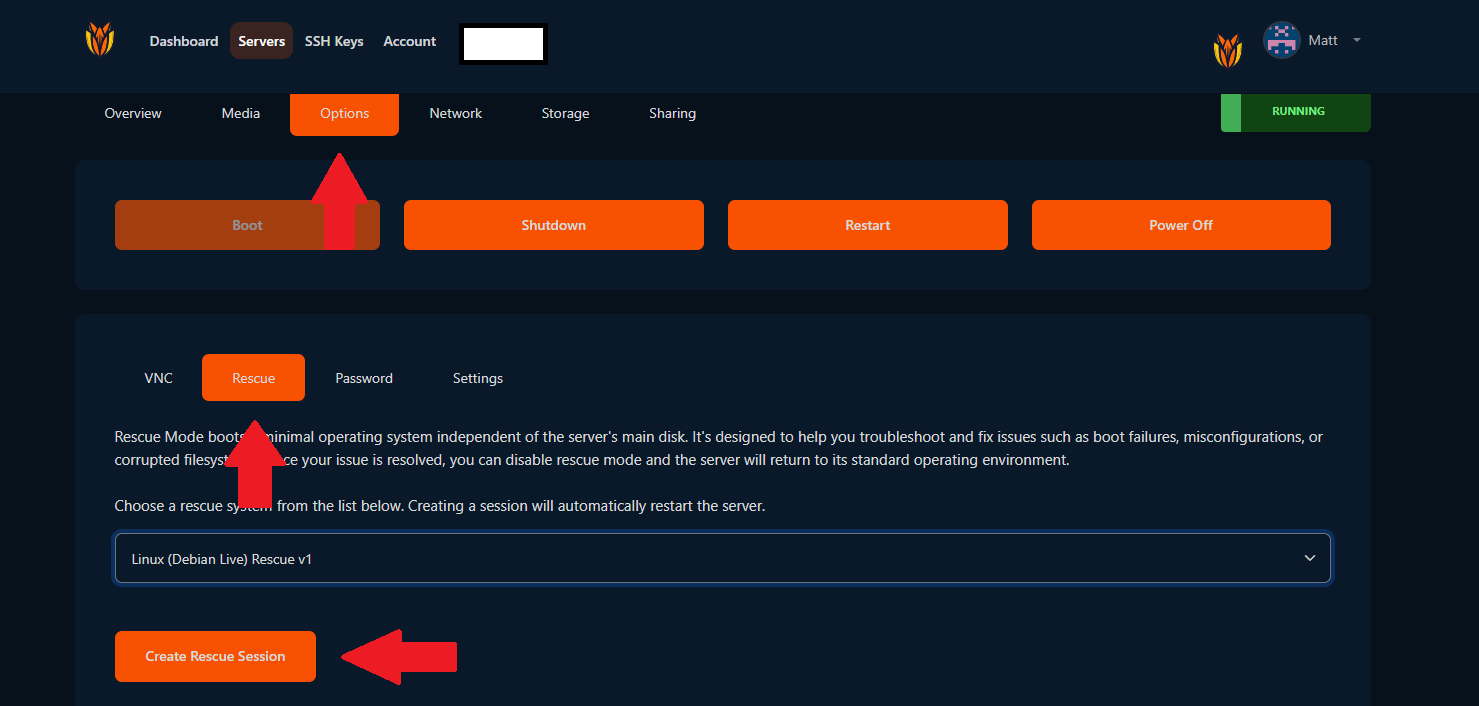
Once we've selected our server, we'll want to head over to the "Options" tab as shown above. We'll pick the second option of all the subtabs available, as shown in the screenshot. Here we can click "Create Rescue Session" to begin the process. Debian Live is the only rescue image available at the moment.
Opening Console
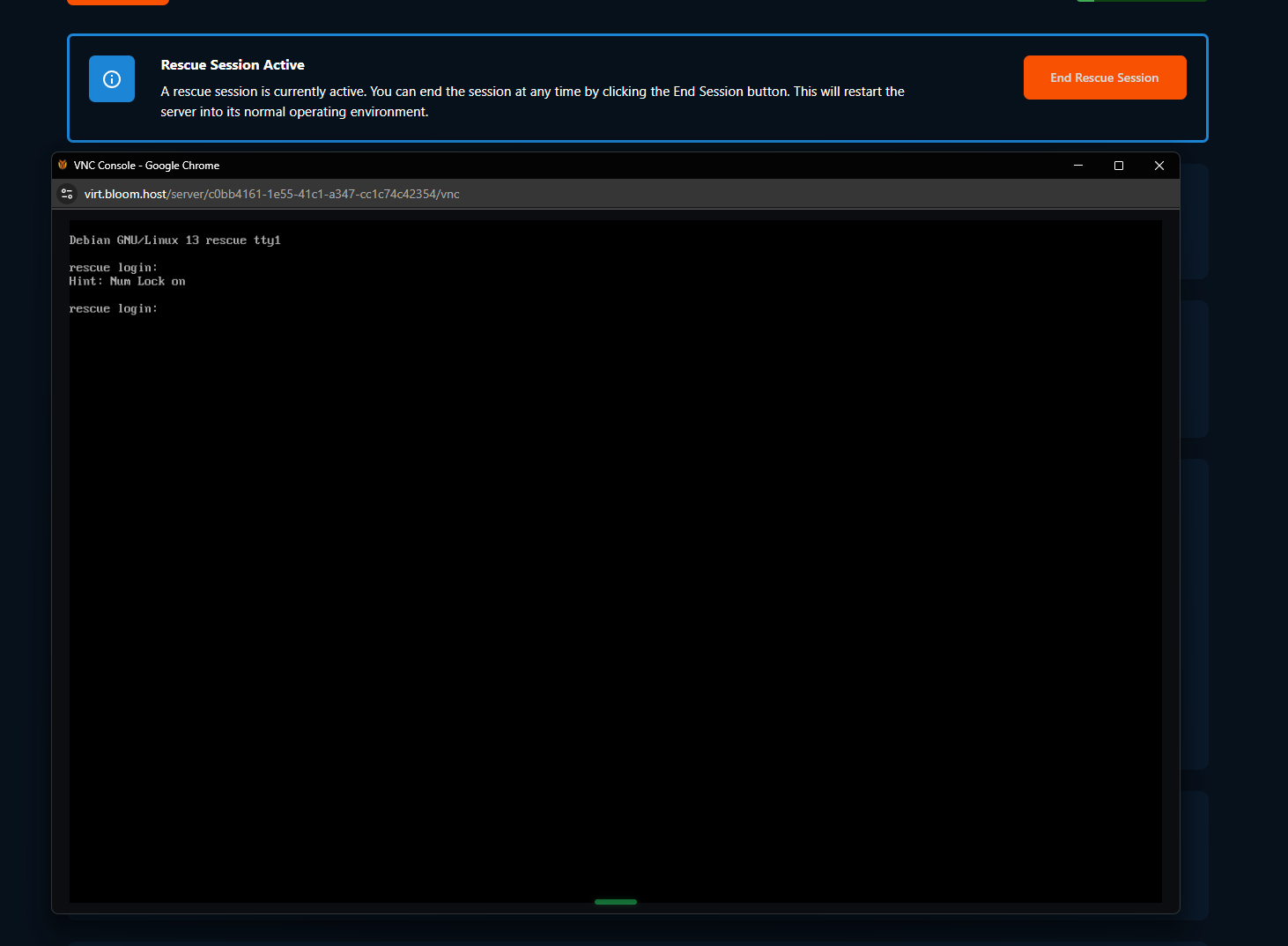
Now we can return to our VNC Console tab. Here we'll be prompted to input our credentials. If we see any message besides the log in prompt, we can press "Enter" to go into log in.
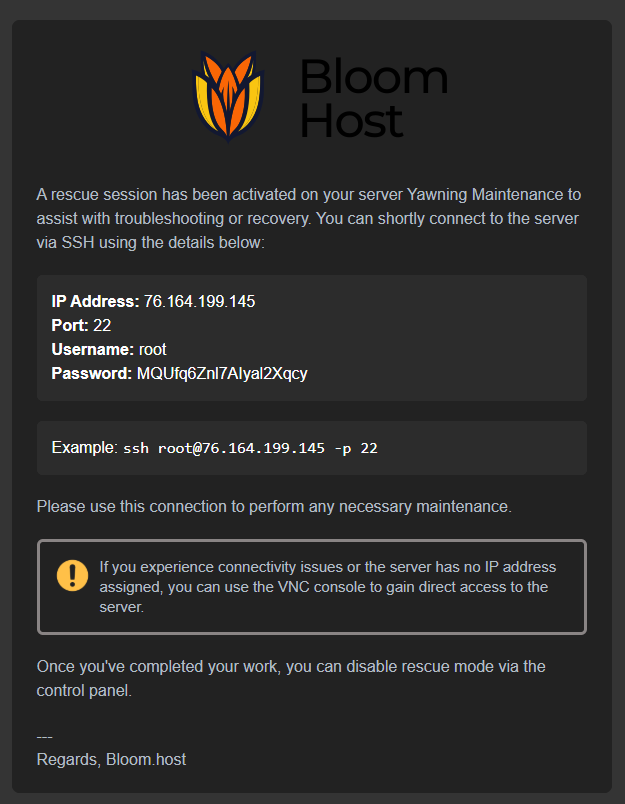
Your credentials will be sent to you via email at the registered address. The email will look much like the example above. The credentials are ephemeral, as is the OS itself. Just don't share your credentials while Rescue Mode is on as you'll be fine. The email will be similar to our example above.
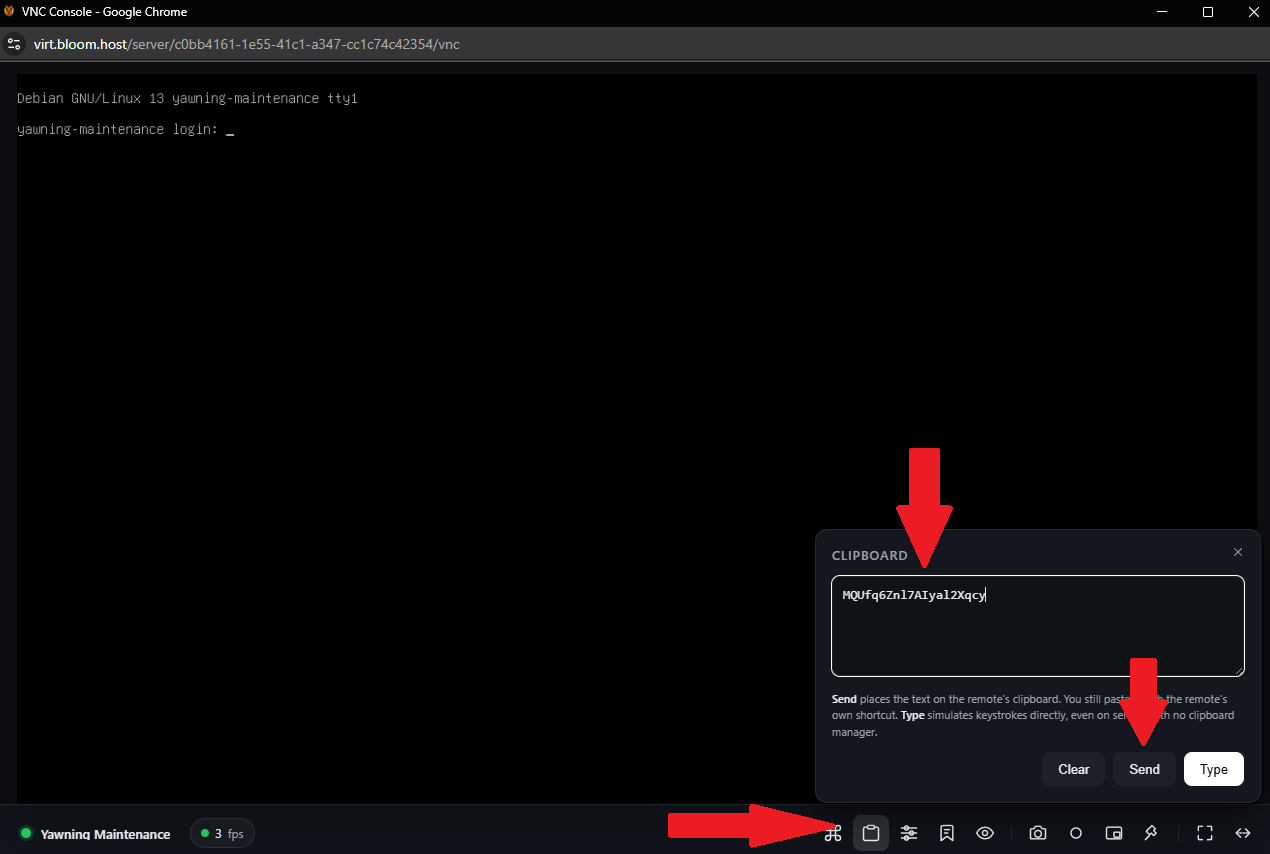
As you can see, the credentials you'll receive are not so easy to type manually. VNC doesn't support pasting in content from your clipboard (keep in mind, VNC doesn't sync with anything but your raw key by key presses and mouse movements). But, as explained in the VNC guide, and as shown above, VirtFusion's VNC Console has a paste feature!
Now you are logged in and ready to continue with your task in Rescue Mode.
Ending Rescue Session
To minimize attack vectors, it's recommended that VNC be only enabled as needed. Disabling the function between uses.
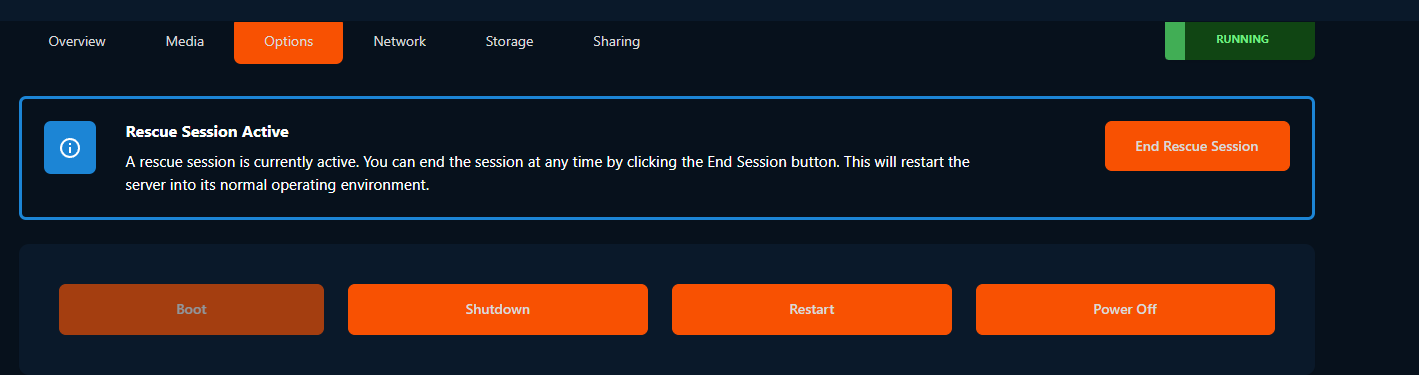
Once you are done with your task within the rescue OS, you'll want to return to your normal OS. To end the Rescue Session, simply return to the panel and click the banner button that presents you with the option to "End Rescue Session".