VirtFusion VNC

VirtFusion VNC
Overview
In this guide we'll learn how to enable VNC in our VirtFusion panel, and then access the VNC console via the same website.
Enabling VNC
To minimize attack vectors, it's recommended that VNC be only enabled as needed. Disabling the function between uses.
First, we'll head over to our panel and access the specific VPS we want to manage, we can do so by logging in to our dashboard
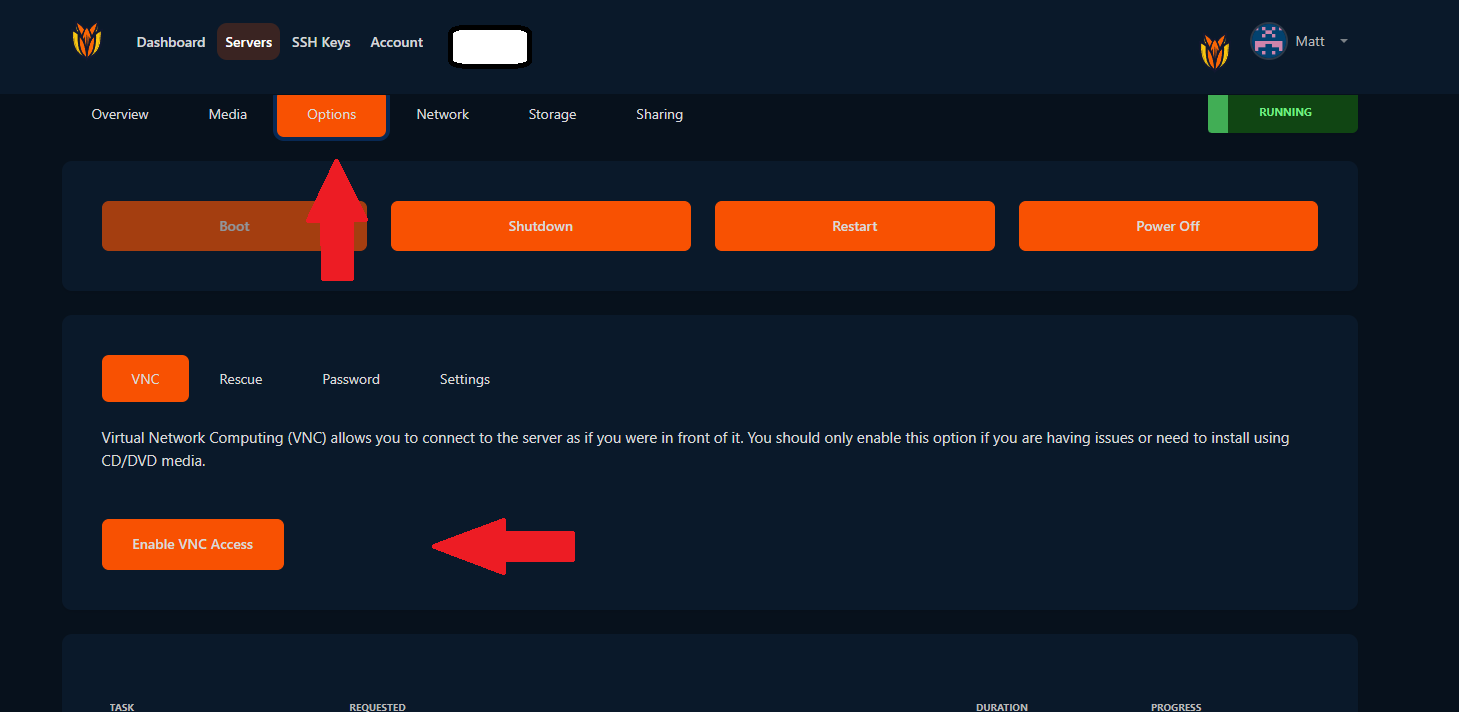
Once we've selected our server, we'll want to head over to the "Options" tab as shown above. The first option of all the subtabs available is the one we want, as shown in the screenshot. Once we've enabled VNC by clicking the highlighted button, we can proceed with the next step.
Opening Our VNC Console
The VNC console allows access to the virtual machine when SSH fails. Either due to config changes, or the need to access the machine outside the standard OS boot procedure, like recovery.
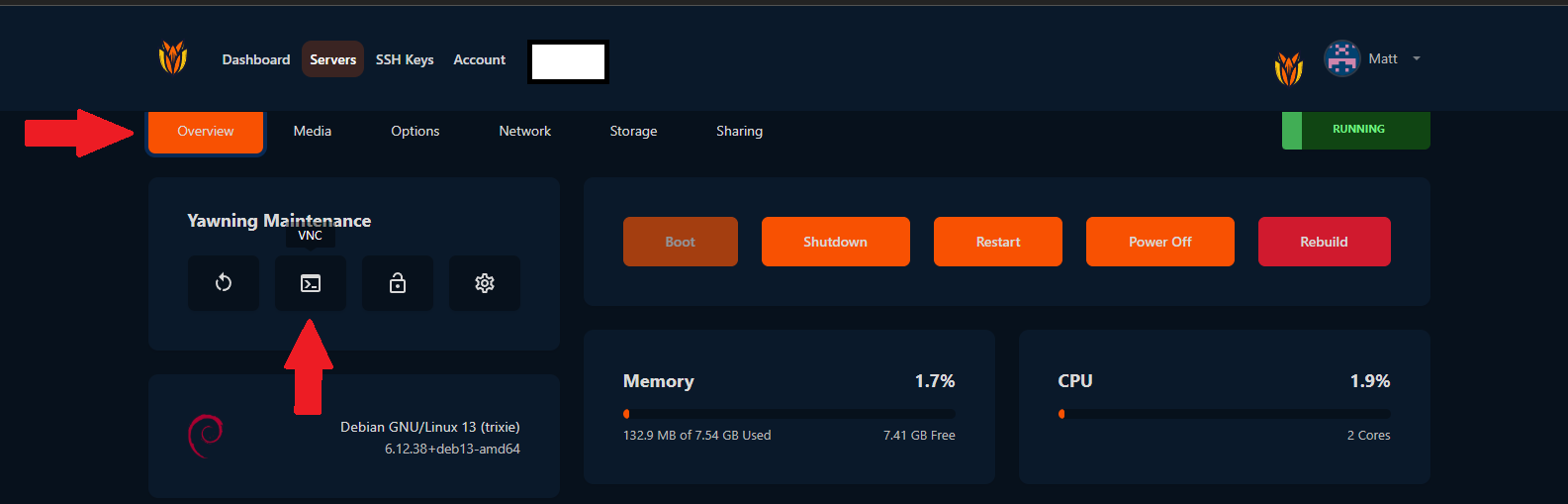
Now, back on the main tab of our panel we can finally see and click the "VNC" icon. Which will finally open the VNC console as seen below.
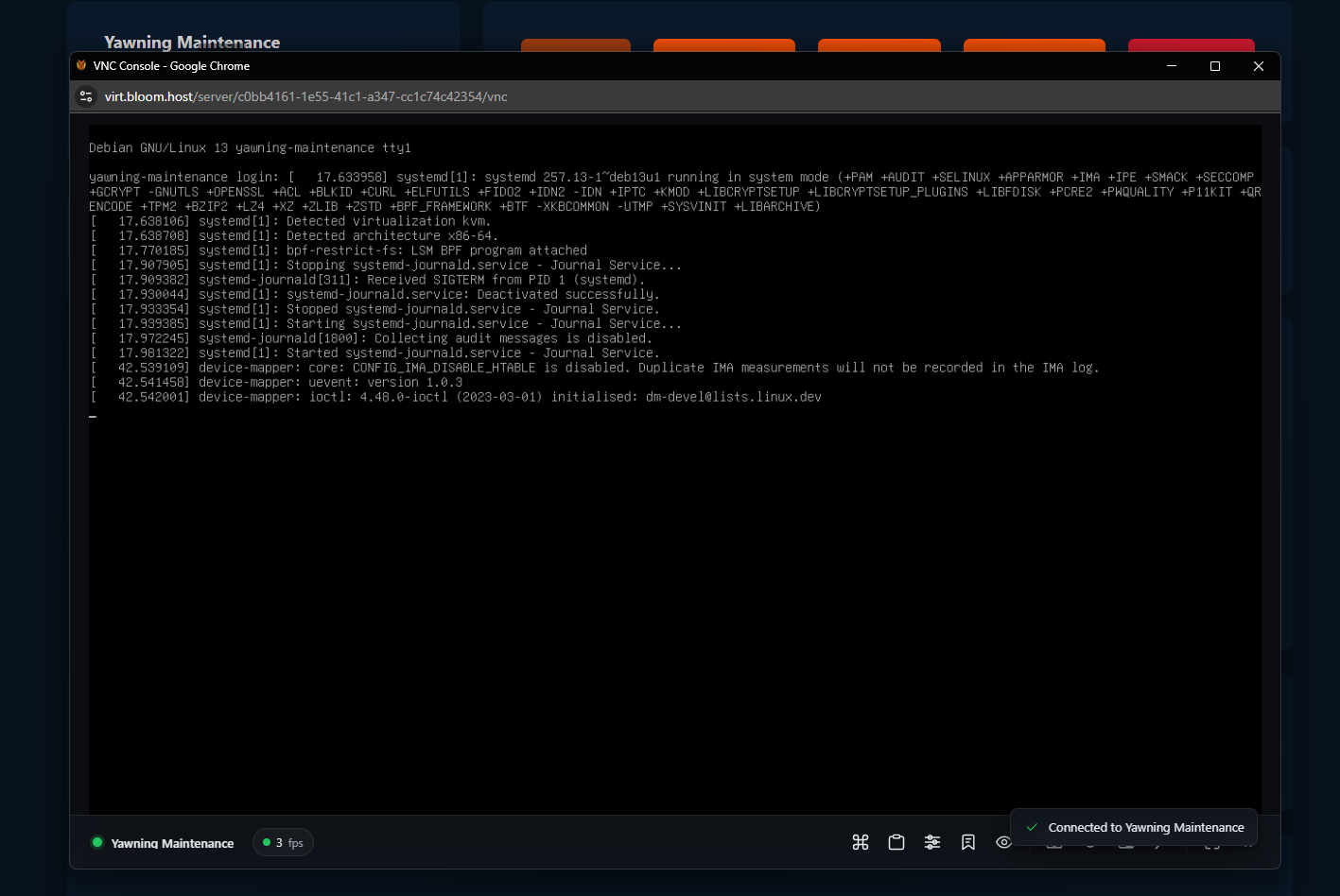
Now with the console we can manage the virtual machine as if it were an SSH session. Using VNC allows us to complete recoveries (both files & password), and to fix other network issues preventing SSH.
Clipboard & Paste In VNC
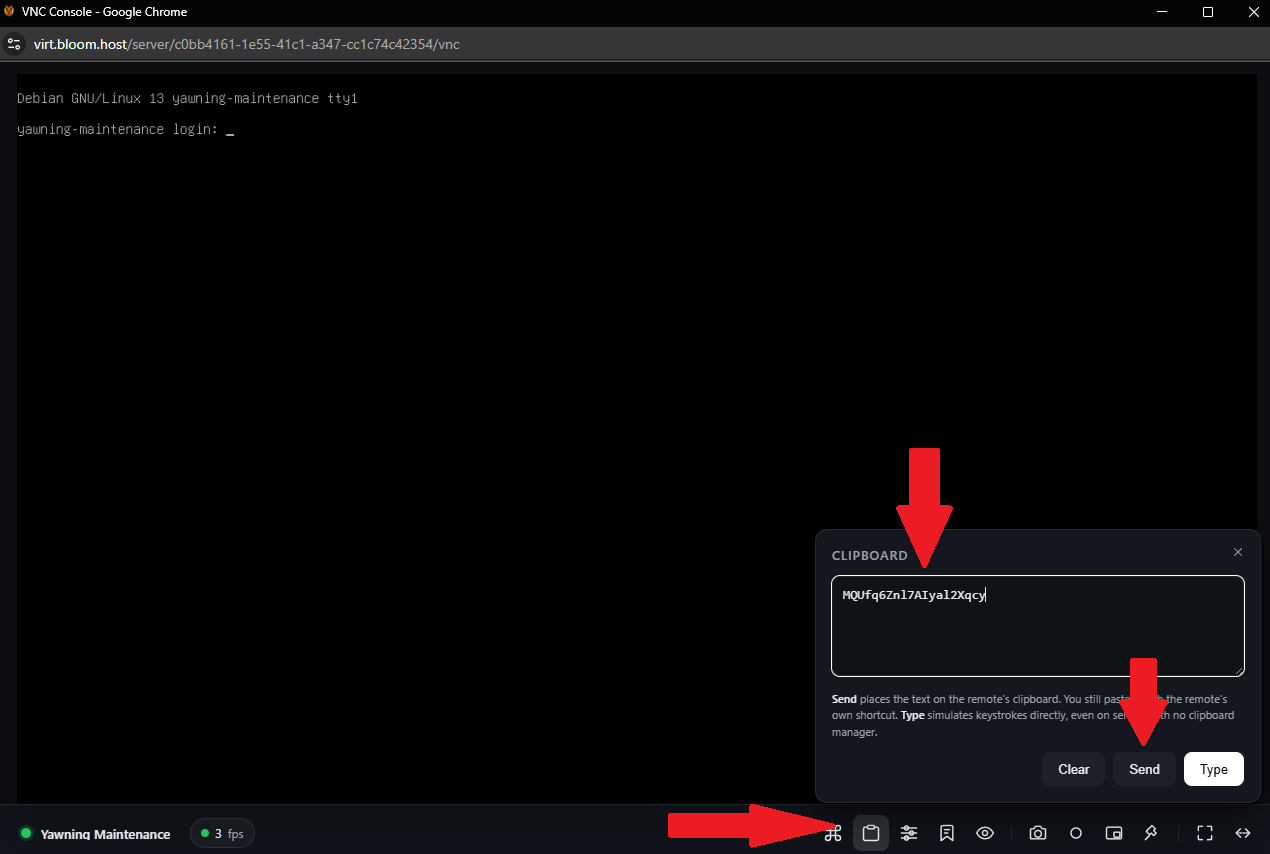
VNC doesn't support pasting in content from your clipboard (keep in mind, VNC doesn't sync with anything but your raw key by key presses and mouse movements). But, don't worry, VirtFusion's VNC Console has a paste feature! It can be accessed as shown above.