NetherNet

NetherNet
Starting with Minecraft: Bedrock Edition 26.60, Bedrock players no longer connect to servers over RakNet, the networking protocol Bedrock has used until now.
Instead, every Bedrock server has to support NetherNet, the new connection method Mojang has been rolling out since version 26.40.
This page covers how NetherNet works on supported Bedrock Dedicated Server and GeyserMC installs.
- Up-to-date Bedrock clients can't join servers that haven't made the switch.
- Bedrock clients older than 26.40 don't support NetherNet, so players on older versions should update to the latest version of Minecraft.
Supported Server Types
NetherNet is supported on two of our Bedrock server types:
- Bedrock - Vanilla: Bedrock Dedicated Server, Mojang's official server software
- Bedrock - GeyserMC: GeyserMC, which lets Bedrock players join a Java Edition server
To switch your server to one of them:
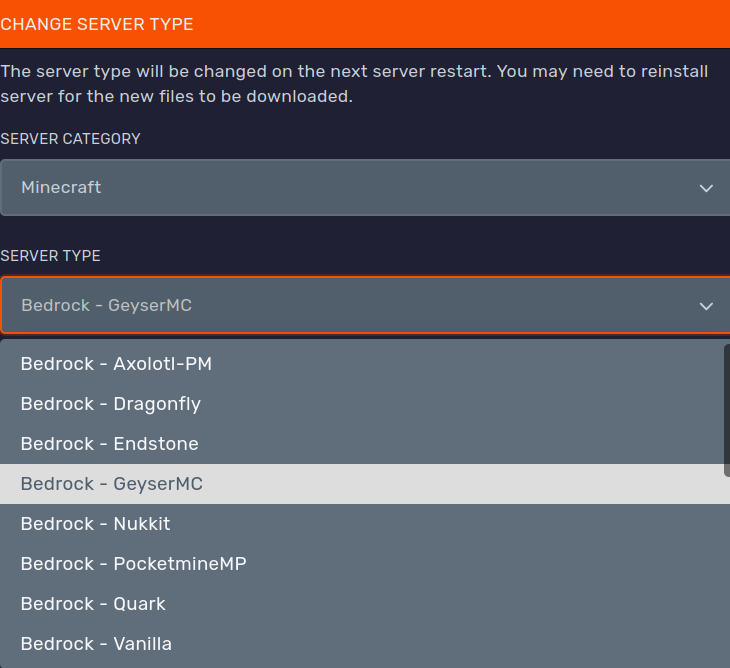
- Open your server in the DuckPanel and go to the Settings tab of the server.
- Under Change Server Type, set the Server Category to
Minecraft. - Pick Bedrock - Vanilla or Bedrock - GeyserMC as the Server Type.
- The files will automatically be downloaded. Note that file configurations are only applied before the first boot.
Bedrock Dedicated Server
On BDS, signaling and gameplay use separate ports, which the panel creates for you:
- Primary port (
19132in the example below): the signaling port, TCP-only - Gameplay ports (
19133-19142below): a range of UDP ports
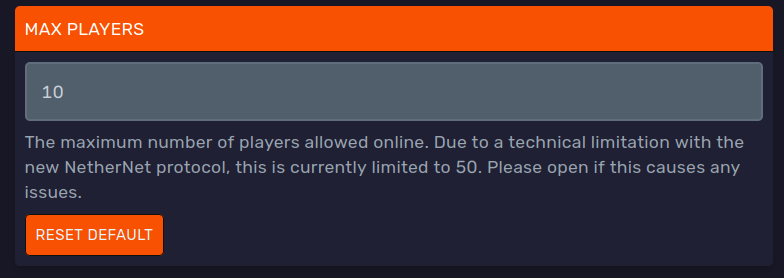
Until BDS supports sharing one UDP port between several players (also known as multiplexing), each player slot needs its own UDP port. Because of this, the player limit is set with the Max Players setting in the Startup tab instead of in server.properties directly.
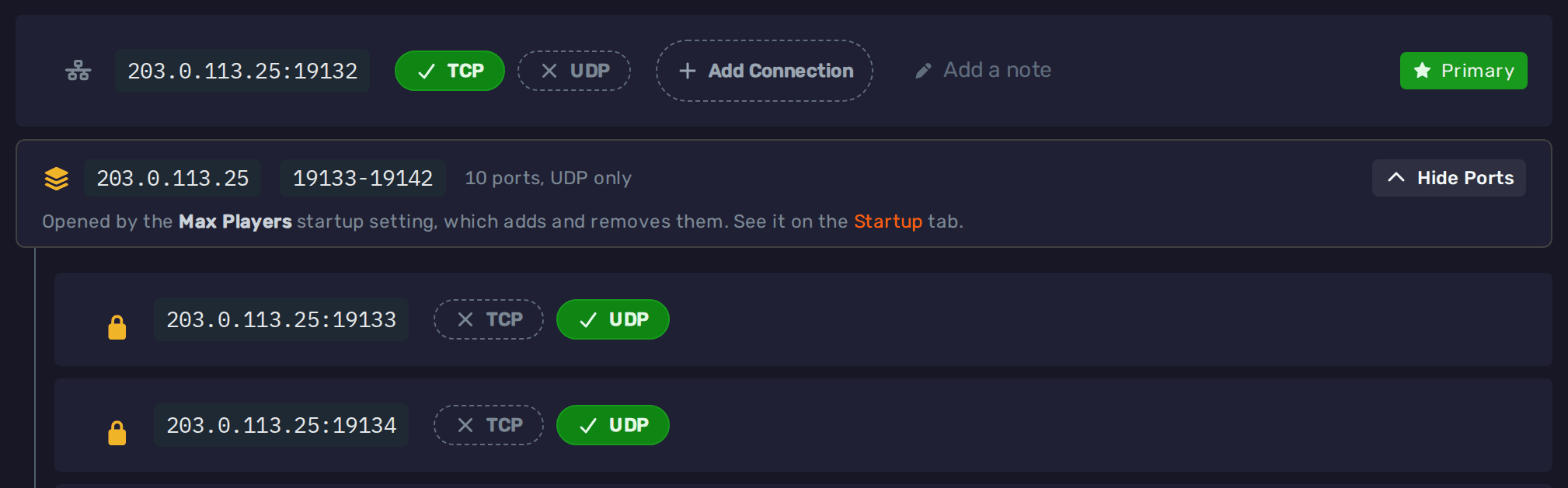
server.properties is automatically set up based on this. For example:
server-port=19132
server-udp-ports=203.0.113.25:19133-19142:19133-19142
server-portis the TCP signaling portserver-udp-portsare the gameplay port ranges, opened automatically
Max Players is currently temporarily limited to 50. If this causes issues for your server, create a ticket in our Discord server.
GeyserMC
You can either use GeyserMC as a plugin on your server or as a standalone server type.
The Bedrock - GeyserMC pre-install is for the standalone version which comes with NetherNet support automatically configured.
GeyserMC supports multiplexing, so a single port such as 19132 with both TCP and UDP enabled is sufficient.
Here is the necessary section for the config.yml / plugins/Geyser-xxxx/config.yml:
bedrock:
  address: 0.0.0.0
  # The main port of the server. NetherNet uses this for TCP signalling only
  port: 19132
  # Bind to the same port just with UDP for gameplay traffic
  webrtc-port: 0
  transport: nethernet
  signaling:
    # The server's public IPv4 so the clients
    # know what to connect to
    advertise-addresses: ['<your-server-public-ip>']
Replace <your-server-public-ip> with your server's IP address, which the Ports & Connections tab shows next to each port.
For general Geyser plugin setup, see our GeyserMC guide.
Connecting With a Domain
iOS requires signaling over HTTPS (TLS), so iOS players can't join a NetherNet server with only an IP address.
Connecting through a domain with HTTPS also removes the "trust on first use" prompt for everyone else.
Our TLS proxy adds HTTPS in front of your server's signaling port. To use it, add a connection through the TLS proxy to the TCP signaling port in the Ports & Connections tab:
- Bedrock - Vanilla: the primary port (
19132above) - GeyserMC: Geyser's port, such as
19132
With GeyserMC, Bedrock players need a domain or subdomain of their own. The one your Java players join with points straight at your server, so it can't also go through the TLS proxy.
Using a Free Subdomain
- Open the Ports & Connections tab and press Add Connection on the signaling port.
- Pick Players, in a game, then Through a TLS proxy and A free subdomain.
- Enter a name for your server, pick one of our domains and press Create. The DNS and the proxy are set up automatically.
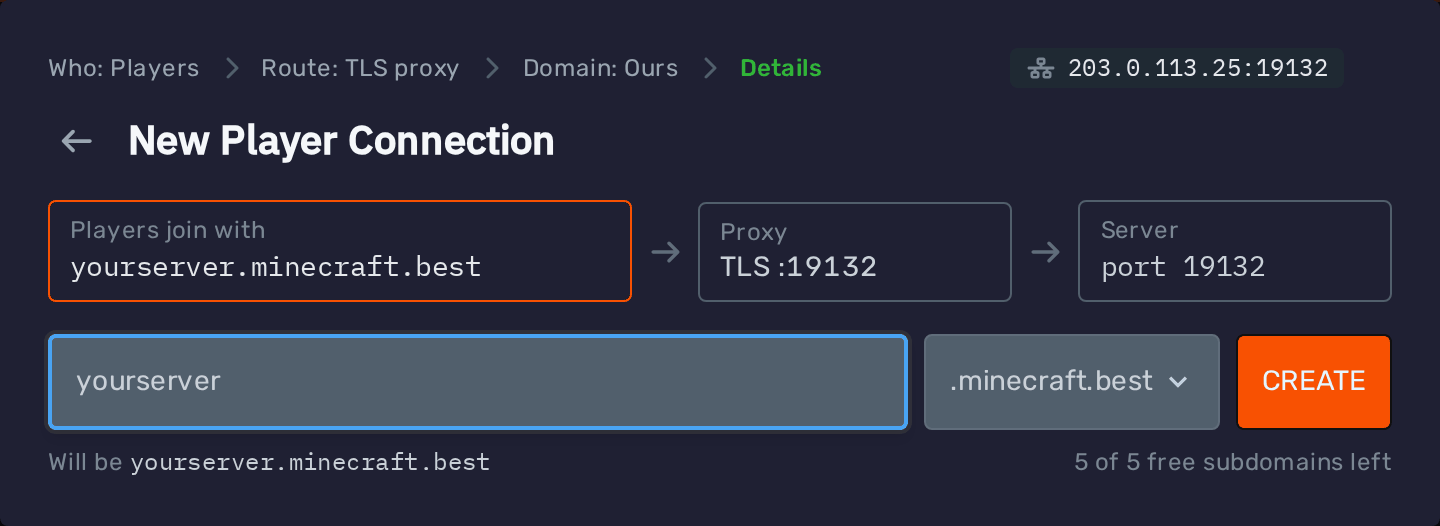
The subdomain is then listed under the port:

Players can then join using the subdomain and that port, for example yourserver.minecraft.best with port 19132.
Using Your Own Domain
- Open the Ports & Connections tab and press Add Connection on the signaling port.
- Pick Players, in a game, then Through a TLS proxy and A third party domain.
- At your domain's DNS provider, add the CNAME record the panel shows, which points your domain at our proxy. If you use Cloudflare, set it to DNS only (grey cloud). Cloudflare's proxy (orange cloud) only passes web ports on, so players could not join through it.
- Type your domain into the box, and press Add once the record is found.
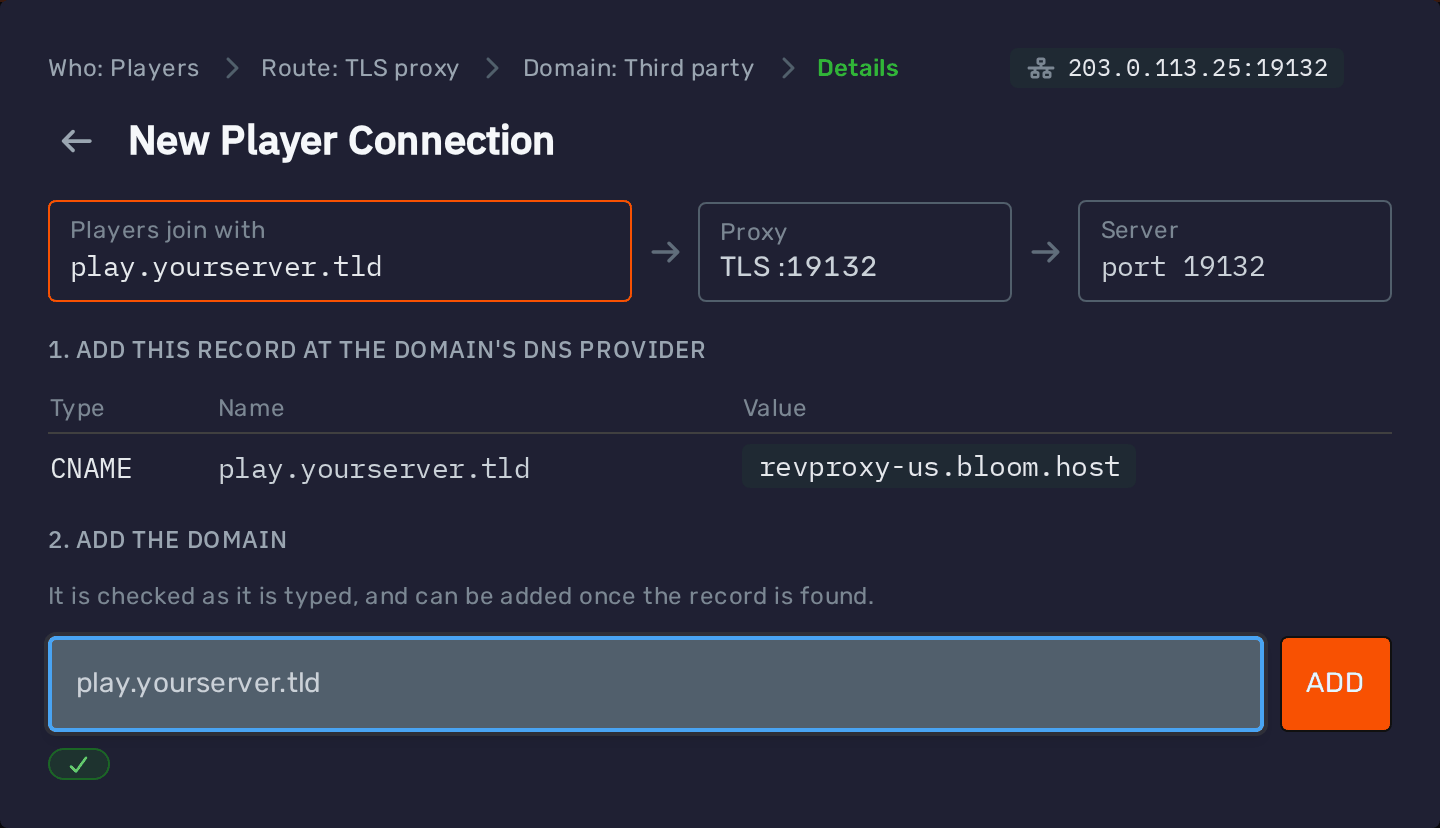
Players can then join using your domain and the port, for example play.yourserver.tld with port 19132.
For more details, see our Ports & Connections guide.
Players' Real IPs With GeyserMC
Through the TLS proxy, Geyser sees our proxy's IP address as the address of every Bedrock player, so an antibot or a per-IP limit treats them all as one player. The proxy passes each player's real IP on, and Geyser reads it once it trusts the proxy:
-
Update Geyser to its latest build. Older builds don't have this setting.
-
Add our proxy's IP address to Geyser's
config.yml:config.ymladvanced:bedrock:signaling-trusted-proxies:- <proxy-ip> -
Restart the server.
Replace <proxy-ip> with the IP address your Bedrock players show up with before this change, which is our proxy's. Only add our proxy here, since Geyser takes any address in this list at its word about which IP a player has.
Technical Overview
For those curious about what happens under the hood:
- Signaling: Before joining, the client sends an HTTP request over TCP to the server's signaling endpoint, asking how to connect. You can check this in your browser as
http(s)://<ip or domain>:<port>/v1/join
The server replies with the details needed to set up the connection.
The MOTD and player count shown in the server list are also fetched through signaling. - Gameplay: The game connection itself runs over WebRTC, which uses UDP.
- Ports: The server needs a TCP port for signaling in addition to the UDP port(s) for gameplay. Depending on the server software, these share a port number or use separate ones.