ViaVersion

ViaVersion
Overview
ViaVersion allows players using newer Minecraft Java versions to connect to a server running an older supported version. This guide will explain which Via plugins you need, where to install them, and how to get started.
Keep in mind that ViaVersion handles connection compatibility. Installing it doesn't update your server or add the blocks and features from newer Minecraft versions.
Which plugins do you need?
The plugins you need depend on your server version and the versions your players will use to connect.
| What you want to support | Plugins needed |
|---|---|
| Newer Java clients joining an older supported server | ViaVersion |
| Older Java clients, from 1.9 onward, joining a newer supported server | ViaVersion and ViaBackwards |
| Java 1.7 or 1.8 clients joining a newer supported server | ViaVersion, ViaBackwards, and ViaRewind |
The chart below gives an overview of how the Via plugins work together. Find your server version on the left, then look across to the version your players want to connect with. “VB” means ViaBackwards, and “VR” means ViaRewind.
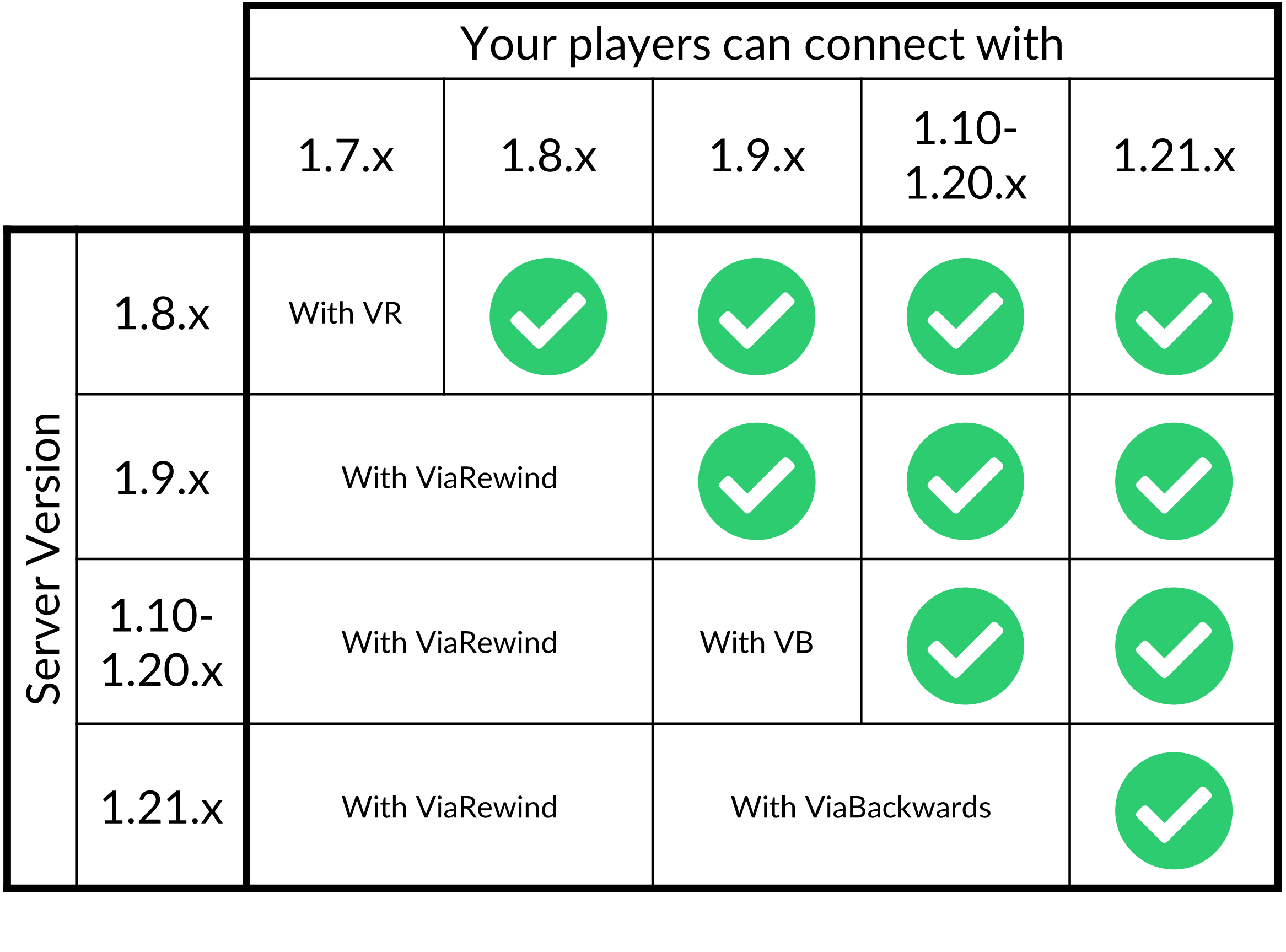
Keep in mind that this chart groups several versions together and only shows releases through 1.21.x. Before downloading anything, use the ViaSetup compatibility tool to check your exact setup. Select your server version, whether you're installing on a proxy, and the client versions you want to support.
Support depends on the exact versions involved and the Via releases you have installed. A new Minecraft release may require an update before players using it can connect.
These plugins handle Java Edition connections. If you want Bedrock players to join, check out our Geyser guide.
Where to install
Single server
If you have a single Paper server, install ViaVersion and any required add-ons in that server's plugins folder.
Proxy network
If you're using a proxy, you can install the Via plugins on the proxy or on each backend server. Backend servers are the individual Minecraft servers players connect to through your proxy.
Both locations are supported; choose the proxy or all backends based on the integrations you use, then keep ViaVersion and its add-ons together at that location.
Keep ViaVersion and its add-ons together at the same installation location. Avoid installing them on both the proxy and the backends.
If you use GrimAC, install ViaVersion and its add-ons on the backend servers where GrimAC is installed. ViaVersion must not be installed on the proxy, even if it is also installed on the backends.
Setup
The steps below cover Paper and Velocity. For other platforms, use ViaSetup to check which integration you need. For example, BungeeCord uses the separate ViaBungee loader.
Standard Via builds require Java 17 or newer. Your server software may require a newer Java version, so make sure both requirements are met. If needed, check our Java version guide. Modern Paper servers will already use a newer version of Java.
First, download a compatible ViaVersion release. Stop the server or proxy where you're installing it, then upload the .jar file into its plugins folder using the File Manager.
If you also need ViaBackwards or ViaRewind, upload their files to the same folder.
Start the server or proxy again and check the console for errors. Then, try joining with one of the additional client versions you want to support. You can run viaversion list in the same console to see the versions connected players are using.
Configuration
ViaVersion usually works with its default settings. On Paper, you'll find its configuration at plugins/ViaVersion/config.yml.
Restricting client versions
If you want to limit which supported versions can connect, you can use the block-versions setting. For example, the following blocks clients older than Minecraft 1.20:
block-versions:
  - "<1.20"
block-disconnect-msg: "Please use Minecraft 1.20 or newer to join."
This only restricts versions that would otherwise be able to connect. It doesn't add support for versions your installed plugins cannot handle.
Save the file and restart the server or proxy after making changes. For other settings, check the comments in your generated file and the ViaVersion configuration guide.
Connection issues
If a player receives an outdated client or server message, first check their exact Minecraft version against ViaSetup. Make sure you have the required add-ons and compatible releases.
You should also check the startup console for plugin errors and confirm that the player's version isn't blocked in your configuration. If you're using a proxy, make sure the proxy itself is up to date.
If you still need help, you can run viaversion dump in the console to generate diagnostic information for the ViaVersion support team.